> ## Documentation Index
> Fetch the complete documentation index at: https://dripart-chore-sync-comfy-api-v2-spec-b886298.mintlify.site/llms.txt
> Use this file to discover all available pages before exploring further.
# How to Troubleshoot and Solve ComfyUI Issues
> Common ComfyUI issues, solutions, and how to report bugs effectively
We receive a lot of feedback issues, and we find that most of the issues submitted are related to custom nodes. So please ensure that you have read the [custom node troubleshooting guide](/troubleshooting/custom-node-issues) before submitting an error report to ensure that the issue is not caused by ComfyUI core issues.
Check how to troubleshoot issues caused by custom nodes.
## Common Issues & Quick Fixes
Before diving into detailed troubleshooting, try these common solutions:
### ComfyUI Won't Start
**Symptoms:** Application crashes on startup, black screen, or fails to load
**Quick fixes:**
1. **Check system requirements** - Ensure your system meets the [minimum requirements](/installation/system_requirements)
2. **Update GPU drivers** - Download latest drivers from NVIDIA/AMD/Intel
### Generation Fails or Produces Errors
**Symptoms:** "Prompt execution failed" dialog with "Show report" button, workflow stops executing
**Quick fixes:**
1. **Click "Show report"** - Read the detailed error message to identify the specific issue
2. **Check if it's a custom node issue** - [Follow our custom node troubleshooting guide](/troubleshooting/custom-node-issues)
3. **Verify model files** - See [Models documentation](/basic-concepts/models) for model setup
4. **Check VRAM usage** - Close other applications using GPU memory
### Slow Performance
**Symptoms:** Very slow generation times, system freezing, out of memory errors
**Quick fixes:**
1. **Lower resolution/batch size** - Reduce image size or number of images
2. **Use memory optimization flags** - See performance optimization section below
3. **Close unnecessary applications** - Free up RAM and VRAM
4. **Check CPU/GPU usage** - Use Task Manager to identify bottlenecks
**Performance Optimization Commands:**
For low VRAM systems:
```bash theme={null}
# Low VRAM mode (uses cpu for text encoder)
python main.py --lowvram
# CPU mode (very slow but works with any hardware, only use as absolute last resort)
python main.py --cpu
```
For better performance:
```bash theme={null}
# Disable previews (saves VRAM and processing)
python main.py --preview-method none
# Use optimized attention mechanisms
python main.py --use-pytorch-cross-attention
python main.py --use-flash-attention
# Async weight offloading
python main.py --async-offload
```
For memory management:
```bash theme={null}
# Reserve specific VRAM amount for OS (in GB)
python main.py --reserve-vram 2
# Disable smart memory management
python main.py --disable-smart-memory
# Use different caching strategies
python main.py --cache-none # Less RAM usage, but slower
python main.py --cache-lru 10 # Cache 10 results, faster
python main.py --cache-classic # Use the old style (aggressive) caching.
```
## Installation-Specific Issues
### Desktop App Issues
For comprehensive desktop installation troubleshooting, see the [Desktop Installation Guide](/installation/desktop/windows).
* **Unsupported device**: Comfy Desktop Windows only supports NVIDIA GPUs with CUDA. Use [ComfyUI Portable](/installation/comfyui_portable_windows) or [manual installation](/installation/manual_install) for other GPUs
* **Installation fails**: Run installer as administrator, ensure at least 15GB disk space
* **Maintenance page**: Check [mirror settings](/installation/desktop/usage/settings#advanced) if downloads fail
* **Missing models**: Models are not copied during migration, only linked. Verify model paths
* **"App is damaged"**: Allow app in Security & Privacy settings
* **Performance issues**: Grant Full Disk Access in Privacy settings
* **Crashes**: Check Console app for crash reports
* **Missing libraries**: Install dependencies with package manager
* **LD\_LIBRARY\_PATH errors**: PyTorch library path issues (see below)
### Manual Installation Issues
The documentation may be slightly out of date. If an issue occurs, please manually verify whether a newer stable version of pytorch or any of the listed libraries exists. Refer to resources like the [pytorch installation matrix](https://pytorch.org/get-started/locally/) or the [ROCm website](https://rocm.docs.amd.com/projects/install-on-linux/en/develop/install/3rd-party/pytorch-install.html#using-a-wheels-package).
**Python version conflicts:**
```bash theme={null}
# Check Python version (3.9+ required, 3.12 recommended)
python --version
# Use virtual environment (recommended)
python -m venv comfyui_env
source comfyui_env/bin/activate # Linux/Mac
comfyui_env\Scripts\activate # Windows
```
**Package installation failures:**
```bash theme={null}
# Update pip first
python -m pip install --upgrade pip
# Install dependencies
pip install -r requirements.txt
# For NVIDIA GPUs (CUDA 13.0)
pip install torch torchvision torchaudio --extra-index-url https://download.pytorch.org/whl/cu130
# For AMD GPUs (Linux only - ROCm 7.2)
pip install torch torchvision torchaudio --index-url https://download.pytorch.org/whl/rocm7.2
```
### Linux-Specific Issues
**LD\_LIBRARY\_PATH errors:**
Common symptoms:
* "libcuda.so.1: cannot open shared object file"
* "libnccl.so: cannot open shared object file"
* "ImportError: libnvinfer.so.X: cannot open shared object file"
**Solutions:**
1. **Modern PyTorch installations (most common):**
```bash theme={null}
# For virtual environments with NVIDIA packages
export LD_LIBRARY_PATH=$VIRTUAL_ENV/lib/python3.12/site-packages/nvidia/nvjitlink/lib:$LD_LIBRARY_PATH
# For conda environments
export LD_LIBRARY_PATH=$CONDA_PREFIX/lib/python3.12/site-packages/nvidia/nvjitlink/lib:$LD_LIBRARY_PATH
# Or find your Python site-packages automatically
PYTHON_PATH=$(python -c "import site; print(site.getsitepackages()[0])")
export LD_LIBRARY_PATH=$PYTHON_PATH/nvidia/nvjitlink/lib:$LD_LIBRARY_PATH
# You may also need other NVIDIA libraries
export LD_LIBRARY_PATH=$PYTHON_PATH/nvidia/cuda_runtime/lib:$LD_LIBRARY_PATH
export LD_LIBRARY_PATH=$PYTHON_PATH/nvidia/cublas/lib:$LD_LIBRARY_PATH
```
2. **Find what libraries you have:**
```bash theme={null}
# Check installed NVIDIA packages
python -c "import site; import os; nvidia_path=os.path.join(site.getsitepackages()[0], 'nvidia'); print('NVIDIA libs:', [d for d in os.listdir(nvidia_path) if os.path.isdir(os.path.join(nvidia_path, d))] if os.path.exists(nvidia_path) else 'Not found')"
# Find missing libraries that PyTorch needs
python -c "import torch; print(torch.__file__)"
ldd $(python -c "import torch; print(torch.__file__.replace('__init__.py', 'lib/libtorch_cuda.so'))")
```
3. **Set permanently for your environment:**
```bash theme={null}
# For virtual environments, add to activation script
echo 'export LD_LIBRARY_PATH=$VIRTUAL_ENV/lib/python*/site-packages/nvidia/nvjitlink/lib:$LD_LIBRARY_PATH' >> $VIRTUAL_ENV/bin/activate
# For conda environments
conda env config vars set LD_LIBRARY_PATH=$CONDA_PREFIX/lib/python*/site-packages/nvidia/nvjitlink/lib:$LD_LIBRARY_PATH
# For global bashrc (adjust Python version as needed)
echo 'export LD_LIBRARY_PATH=$(python -c "import site; print(site.getsitepackages()[0])")/nvidia/nvjitlink/lib:$LD_LIBRARY_PATH' >> ~/.bashrc
```
4. **Alternative: Use ldconfig:**
```bash theme={null}
# Check current library cache
ldconfig -p | grep cuda
ldconfig -p | grep nccl
# If missing, add library paths (requires root)
sudo echo "/usr/local/cuda/lib64" > /etc/ld.so.conf.d/cuda.conf
sudo ldconfig
```
5. **Debug library loading:**
```bash theme={null}
# Verbose library loading to see what's missing
LD_DEBUG=libs python main.py 2>&1 | grep "looking for"
# Check PyTorch CUDA availability
python -c "import torch; print('CUDA available:', torch.cuda.is_available()); print('CUDA version:', torch.version.cuda)"
```
## Model-Related Issues
For comprehensive model troubleshooting including architecture mismatches, missing models, and loading errors, see the dedicated [Model Issues](/troubleshooting/model-issues) page.
## Network & API Issues
### Partner Nodes Not Working
**Symptoms:** API calls fail, timeout errors, quota exceeded
**Solutions:**
1. **Check API key validity** - Verify keys in [user settings](/interface/user)
2. **Check account credits** - Ensure sufficient [API credits](/interface/credits)
3. **Verify internet connection** - Test with other online services
4. **Check service status** - Provider may be experiencing downtime
### Connection Issues
**Symptoms:** "Failed to connect to server", timeout errors
**Solutions:**
1. **Check firewall settings** - Allow ComfyUI through firewall
2. **Try different port** - Default is 8188, try 8189 or 8190
3. **Disable VPN temporarily** - VPN may be blocking connections
4. **Check proxy settings** - Disable proxy if not required
### Frontend Issues
**"Frontend or Templates Package Not Updated":**
```bash theme={null}
# After updating ComfyUI via Git, update frontend dependencies
pip install -r requirements.txt
```
**"Can't Find Custom Node":**
* Disable node validation in ComfyUI settings
**"Error Toast About Workflow Failing Validation":**
* Disable workflow validation in settings temporarily
* Report the issue to the ComfyUI team
**Login Issues When Not on Localhost:**
* Normal login only works when accessing from localhost
* For LAN/remote access: Generate API key at [platform.comfy.org/login](https://platform.comfy.org/login)
* Use API key in login dialog or with `--api-key` command line argument
## Hardware-Specific Issues
### NVIDIA GPU Issues
**"Torch not compiled with CUDA enabled" error:**
```bash theme={null}
# First uninstall torch
pip uninstall torch
# Install stable PyTorch with CUDA 13.0
pip install torch torchvision torchaudio --extra-index-url https://download.pytorch.org/whl/cu130
# For nightly builds (might have performance improvements)
pip install --pre torch torchvision torchaudio --index-url https://download.pytorch.org/whl/nightly/cu132
# Verify CUDA support
python -c "import torch; print(torch.cuda.is_available())"
```
**GPU not detected:**
```bash theme={null}
# Check if GPU is visible
nvidia-smi
# Check driver version and CUDA compatibility
nvidia-smi --query-gpu=driver_version --format=csv
```
### AMD GPU Issues
**ROCm support (Linux only):**
```bash theme={null}
# Install stable ROCm PyTorch (7.2 at the time of writing)
pip install torch torchvision torchaudio --index-url https://download.pytorch.org/whl/rocm7.2
# For nightly builds (ROCm 7.2 at the time of writing, which might have performance improvements)
pip install --pre torch torchvision torchaudio --index-url https://download.pytorch.org/whl/nightly/rocm7.2
```
**Unsupported AMD GPUs:**
```bash theme={null}
# For RDNA2 or older (6700, 6600)
HSA_OVERRIDE_GFX_VERSION=10.3.0 python main.py
# For RDNA3 cards (7600)
HSA_OVERRIDE_GFX_VERSION=11.0.0 python main.py
```
**Performance optimization:**
```bash theme={null}
# Enable experimental memory efficient attention (no longer necessary with PyTorch 2.4)
TORCH_ROCM_AOTRITON_ENABLE_EXPERIMENTAL=1 python main.py --use-pytorch-cross-attention
# Enable tunable operations (slow first run, but faster subsequent runs)
PYTORCH_TUNABLEOP_ENABLED=1 python main.py
```
### Apple Silicon (M1/M2/M3) Issues
**MPS backend setup:**
```bash theme={null}
# Install PyTorch nightly for Apple Silicon
# Follow Apple's guide: https://developer.apple.com/metal/pytorch/
# Check MPS availability
python -c "import torch; print(torch.backends.mps.is_available())"
# Launch ComfyUI
python main.py
```
**If MPS causes issues:**
```bash theme={null}
# Force CPU mode
python main.py --cpu
# With memory optimization
python main.py --force-fp16 --cpu
```
### Intel GPU Issues
**"Torch not compiled with CUDA enabled" error:**
On Intel GPUs this error means ComfyUI tried to use CUDA because the XPU backend was not available. Do not follow the NVIDIA CUDA reinstallation steps above. Intel GPUs use XPU, not CUDA.
Check whether PyTorch can see the Intel GPU:
```bash theme={null}
python -c "import torch; print('XPU available:', hasattr(torch, 'xpu') and torch.xpu.is_available())"
```
If this prints `True`, ComfyUI uses the XPU backend automatically.
If it prints `False`:
1. Confirm you have a supported Intel Arc GPU (Arc A-Series, Arc B-Series, or a Core Ultra processor with Arc Graphics).
2. Install or update the [Intel GPU driver](https://www.intel.com/content/www/us/en/developer/articles/tool/pytorch-prerequisites-for-intel-gpu.html).
3. Install an XPU-enabled PyTorch build using one of the options below. Do not install a CUDA wheel.
**Option 1: Native PyTorch XPU support (Windows/Linux):**
```bash theme={null}
# Stable XPU wheels (recommended)
pip install torch torchvision torchaudio --index-url https://download.pytorch.org/whl/xpu
# Nightly XPU wheels (may include performance improvements)
pip install --pre torch torchvision torchaudio --index-url https://download.pytorch.org/whl/nightly/xpu
# Launch ComfyUI
python main.py
```
**Option 2: Intel Extension for PyTorch (IPEX):**
```bash theme={null}
# For Intel Arc A-Series Graphics
conda install libuv
pip install torch==2.3.1.post0+cxx11.abi torchvision==0.18.1.post0+cxx11.abi torchaudio==2.3.1.post0+cxx11.abi intel-extension-for-pytorch==2.3.110.post0+xpu --extra-index-url https://pytorch-extension.intel.com/release-whl/stable/xpu/us/
```
## Getting Help & Reporting Bugs
### Before Reporting a Bug
1. **Check if it's a known issue:**
* Search [GitHub Issues](https://github.com/Comfy-Org/ComfyUI/issues)
* Check [ComfyUI Forum](https://forum.comfy.org/)
* Review [Discord discussions](https://discord.com/invite/comfyorg)
2. **Try basic troubleshooting:**
* Test with [default workflow](/get_started/first_generation)
* Disable all custom nodes (see [custom node troubleshooting](/troubleshooting/custom-node-issues))
* Check console/terminal for error messages
* If using comfy-cli, try updating: `comfy node update all`
### How to Report Bugs Effectively
#### For ComfyUI Core Issues
**Where to report:** [GitHub Issues](https://github.com/Comfy-Org/ComfyUI/issues)
#### For Desktop App Issues
**Where to report:** [Desktop GitHub Issues](https://github.com/Comfy-Org/Comfy-Desktop/issues)
#### For Frontend Issues
**Where to report:** [Frontend GitHub Issues](https://github.com/Comfy-Org/ComfyUI_frontend/issues)
#### For Custom Node Issues
**Where to report:** Contact the specific custom node developer
### Required Information
When reporting any issue, include:
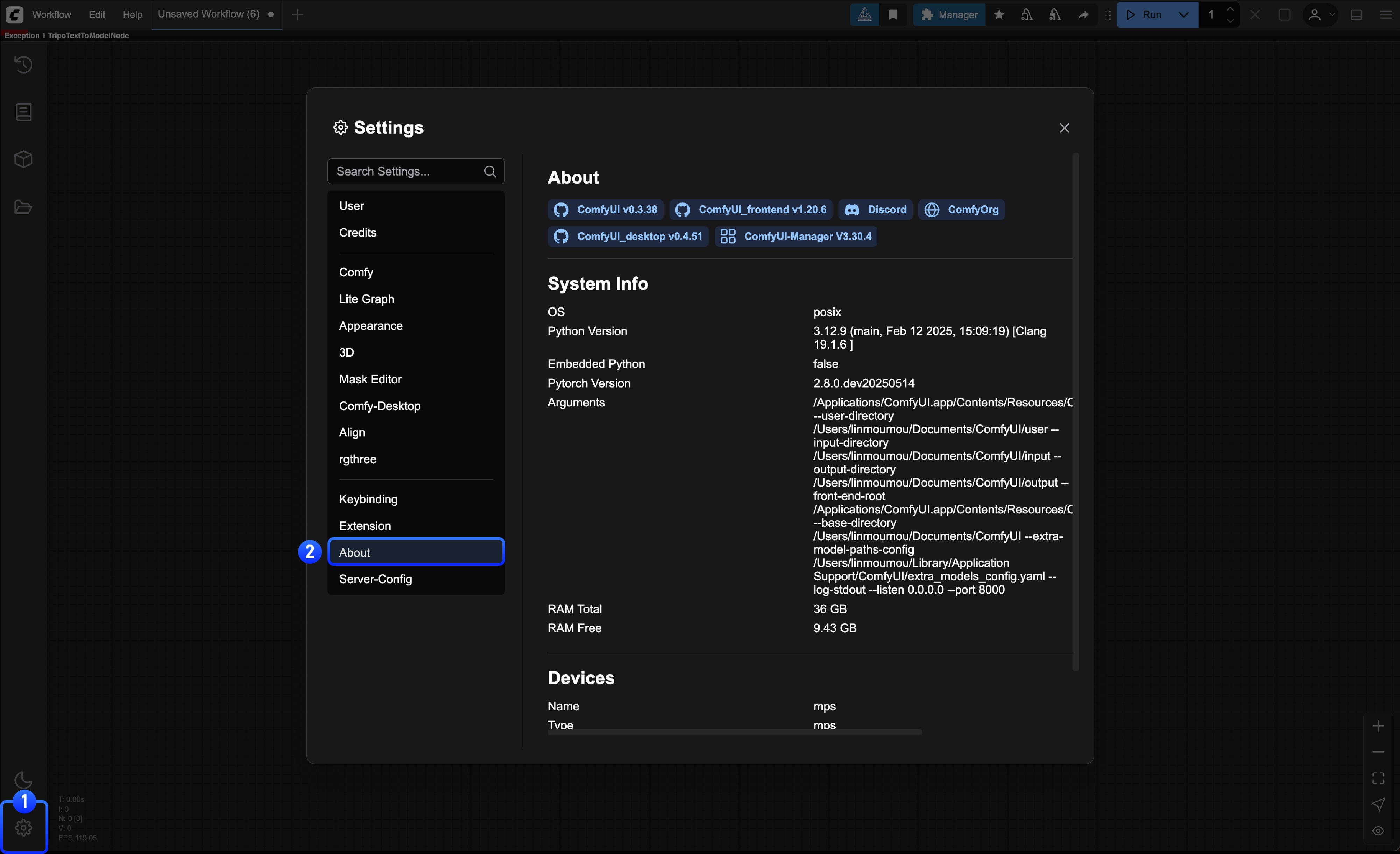
**System Information (can be found in the About page in settings):**
* Operating System (Windows 11, macOS 14.1, Ubuntu 22.04, etc.)
* ComfyUI version (check About page in settings)
* Python version: `python --version`
* PyTorch version: `python -c "import torch; print(torch.__version__)"`
* GPU model and driver version
* Installation method (Desktop, Portable, Manual, comfy-cli)
 ```bash theme={null}
# System info
systeminfo | findstr /C:"OS Name" /C:"OS Version"
# GPU info
wmic path win32_VideoController get name
# Python & PyTorch info
python --version
python -c "import torch; print(f'PyTorch: {torch.__version__}')"
python -c "import torch; print(f'CUDA Available: {torch.cuda.is_available()}')"
```
```bash theme={null}
# System info
uname -a
# GPU info (Linux)
lspci | grep VGA
# Python & PyTorch info
python --version
python -c "import torch; print(f'PyTorch: {torch.__version__}')"
python -c "import torch; print(f'CUDA Available: {torch.cuda.is_available()}')"
```
**For Desktop App issues, also include:**
* Log files from: `C:\Users\\AppData\Roaming\ComfyUI\logs` (Windows)
* Config files from: `C:\Users\\AppData\Roaming\ComfyUI` (Windows)
**Problem Details:**
* Clear description of the issue
* Steps to reproduce the problem
* Expected vs actual behavior
* Screenshots or videos if applicable
**Error Messages:**
* Full error text from console/terminal
* Browser console errors (F12 → Console tab)
* Any crash logs or error dialogs
**Additional Context:**
* List of installed custom nodes
* Workflow file (.json) that reproduces the issue
* Recent changes (new installations, updates, etc.)
## Community Resources
* **Official Forum:** [forum.comfy.org](https://forum.comfy.org/)
* **Discord:** [ComfyUI Discord Server](https://discord.com/invite/comfyorg)
* **Reddit:** [r/comfyui](https://reddit.com/r/comfyui)
* **YouTube:** [ComfyUI Tutorials](https://www.youtube.com/@comfyorg)
```bash theme={null}
# System info
systeminfo | findstr /C:"OS Name" /C:"OS Version"
# GPU info
wmic path win32_VideoController get name
# Python & PyTorch info
python --version
python -c "import torch; print(f'PyTorch: {torch.__version__}')"
python -c "import torch; print(f'CUDA Available: {torch.cuda.is_available()}')"
```
```bash theme={null}
# System info
uname -a
# GPU info (Linux)
lspci | grep VGA
# Python & PyTorch info
python --version
python -c "import torch; print(f'PyTorch: {torch.__version__}')"
python -c "import torch; print(f'CUDA Available: {torch.cuda.is_available()}')"
```
**For Desktop App issues, also include:**
* Log files from: `C:\Users\\AppData\Roaming\ComfyUI\logs` (Windows)
* Config files from: `C:\Users\\AppData\Roaming\ComfyUI` (Windows)
**Problem Details:**
* Clear description of the issue
* Steps to reproduce the problem
* Expected vs actual behavior
* Screenshots or videos if applicable
**Error Messages:**
* Full error text from console/terminal
* Browser console errors (F12 → Console tab)
* Any crash logs or error dialogs
**Additional Context:**
* List of installed custom nodes
* Workflow file (.json) that reproduces the issue
* Recent changes (new installations, updates, etc.)
## Community Resources
* **Official Forum:** [forum.comfy.org](https://forum.comfy.org/)
* **Discord:** [ComfyUI Discord Server](https://discord.com/invite/comfyorg)
* **Reddit:** [r/comfyui](https://reddit.com/r/comfyui)
* **YouTube:** [ComfyUI Tutorials](https://www.youtube.com/@comfyorg)